Configure restrictions on managed devices
Related Video: Restriction Management
Restriction management allows an admin to enable and disable settings that affect device functionality, security and privacy, internet, media, and more. Restriction sets are created in the library and can be applied to single or multiple devices.
In the devices section, an admin can choose a single device or multiple devices, then in the right-panel Restrictions tab, view all restriction sets currently applied to the device(s); view effective restrictions only; remove a restriction set, or view details for a single restriction set.
Restriction Sets: Devices View:

The Allow use of camera restriction can be changed in the Android device restrictions section within the portal. However, even if an admin chooses not to allow the use of camera on a work profile, an end user can still access the camera on the device using a personal profile.
Add a new restriction set
- Select the Devices tab in top navigation.
- Select one or more devices from the main list.
- In the right panel, choose Restriction Sets.
- Click + Add.
- Select an existing restriction set from the list.
- Click Install on Device.
Add a restriction set from Library using policies
- Select the Policies tab in top navigation.
- Complete one of the following steps:
- To create a policy, click Add New.
- To edit an existing policy, click the policy to open the policy details.
- In the Applies To tab, select one or more labels associated with target devices. For more details about labels, see Using labels to group similar items.
- In the Resources tab, click Add Resources to open the drop-down list.
- From the Add Resource drop-down list , select Restriction Sets to open a dialog.
- Select and expand an individual rule.
For Restriction Sets, expand the set to display the Configuration types. It allows the selection of specific OS types, including Android Device-wide, Android Work Profile, macOS, and iOS. - Slide the Link toggle to link/unlink the resource.
- To link the resource to policy, slide the Link toggle to right. The color of the toggle changes to green indicating the resource is linked.
- To unlink a previously linked resource, slide the Link toggle to left. The color of the toggle changes to red indicating the resource is unlinked.
- (Optional) In the Options column, click the icon to open Resource Options dialog. Select one of the following Compliance Type:
- Include - Select this option to include the resource when determining the compliance status.

NOTE: By default, all the Resources in a policy are included in compliance checks.
- Exclude - Select this option to exclude the Resource when determining the compliance status.
- Click Add Resources to associate the item to the policy. You can view the resource in the Resources pane.
- Click Push Resource to deploy the added resources to the target devices or users.
For more information about policies, see Using policies to manage device configurations.
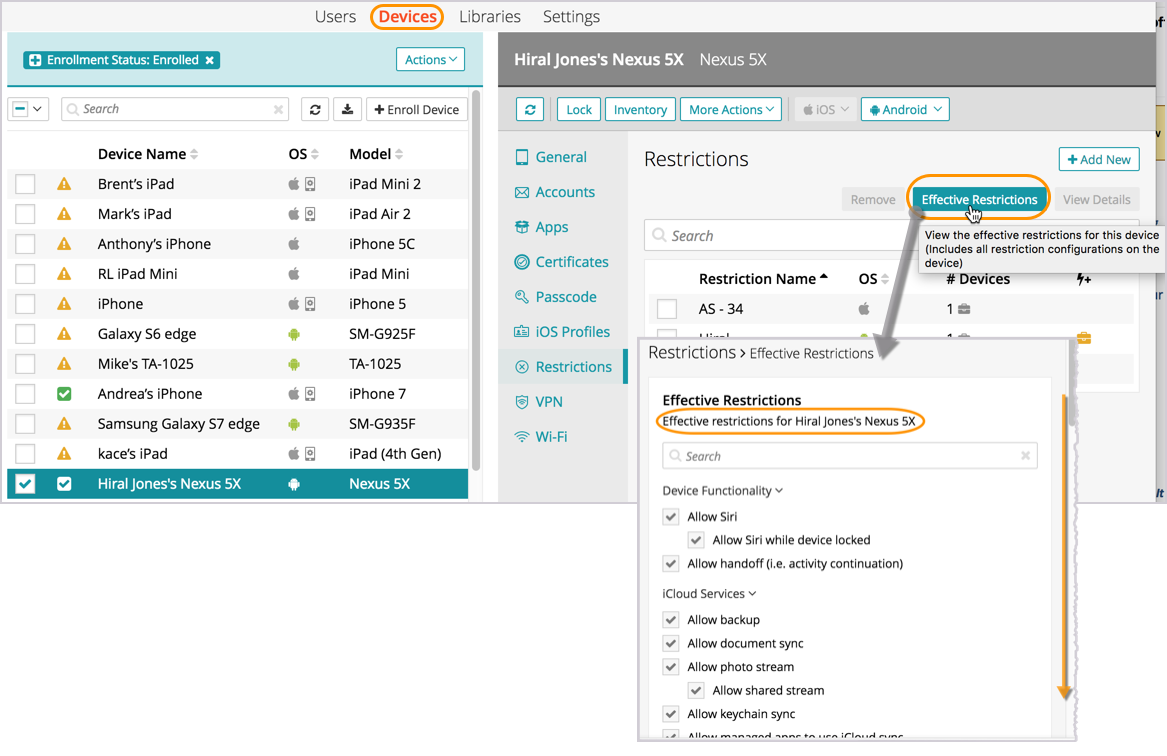
View effective restrictions
Effective restrictions represent all active restrictions on a specific device. In the case of multiple restriction sets being applied to a device, the strictest among them will be enforced.
- Select the Devices tab in top navigation.
- Select a device from the main list.
- In the right panel, choose Restriction Sets.
- Click the Effective Restrictions button.
Remove a restriction set from a device
- Select the Devices tab in top navigation.
- Select one or more devices from the main list.
- In the right panel, choose Restrictions.
- Select the restriction set that you'd like to remove.
- Click Remove, then Confirm.